Free Ebook: Tells You Secrets To Getting High Quality Slide, Negative, Photos Scans In Half The Time
Which of these scanning troubles do you want to overcome?
- What's the best resolution / DPI to scan your slides, negatives, and photos -- so you don't lose details
- Best method to digitize slides, negatives, photos using your regular flatbed or film scanner
- How to clean your negatives, slides, and photos before you scan them -- so you don't scratch them
- What side should you scan a slide or negative -- so they're not backwards or facing the wrong way
- How to setup your scanner to get higher quality digital images -- 24bit JPEG? 48bit TIFF?
- How to fix your digital images using Digital ICE, GIMP, or Photoshop and make them look new
- How to improve your scan workflow so you can double your productivity and finish your project twice as fast
- Understand the technical stuff of a digital image so you can make sideshow videos, reprints, and more!
Hey, my name is Konrad. I've been scanning professionally since 2005. I've helped multi-billion dollar companies, pro sports teams, pro photographers, artists, museums, book publishers, etc. I've scanned over 930,000 slides, negatives, photos.
The reason I'm telling you this is because no matter what challenge or frustration you're having, I know exactly what you're going through. So, to help you RIGHT NOW, I've put together a super simple scanning guide to get you started.

Free Online Scan Training...

How To Scan Photos Into Digital Images, Free Step-by-Step Guide
Discover how to setup your scanner for photo scanning, and make your job go faster and easier. Click link above to start your free photo scanning guide.

How To Scan Slides Into Digital Images, Free Step-by-Step Guide
What's the best resolution to scan 35mm, 70mm, 120, etc? How do you fix slide scans so they look better than the originals? Click link above to start your free slide scanning guide.

How To Scan Negative Film Into Digital, Free Step-by-Step Guide
Are your negative scans coming out grainy? How to setup your scanner so your negatives don't get cropped? Click link above to get help you finish your negative scans faster.

Free Ebook: How To Scan Slides, Negatives, Photos Into High Quality, High Resolution Digital Images
In this ebook, you'll discover insights that your scan manual won't show you. If you implement what you learn, you will improve your workflow, and you'll get step by step instructions on how to edit your scans. Hurry... this ebook is free only for a limited time.

NEW: Video And Ebook Tutorials Using The "Scanshop System"
This is a proven scan system showing you step by step instructions on how to professionally edit your scans using Lightroom, Photoshop, Elements, GIMP, or Corel DRAW. I use this scan system when I edit my client's scans (I charge $2.50 per scan). Get the same quality I do when you use the Scanshop System.

Best Resolution When Scanning Photos
An easy way to understand photo scan resolution. Understand this, and the rest will be easy.

Top 3 Mistakes People Make When Scanning For Photobooks
Making a photobook? Get 3 simple steps so you don't get low quality scans for your photobook.

Best Resolution When Scanning 35mm Slides Into Digital
Not sure when to use 4000 DPI or 300 DPI? Confused what mega pixels mean? Want to know how big you can print your scan? Find out, here...

Is Your Scanning Doing ONE Big Photo Scan, And Not Cropping Your Photos?
Learn how to crop your photos so your scanner gives you individual scans, and not one big image.

Difference Between 24 Bit and 48 Bit Scans
Learn when to scan at 24 bit or 48 bit. And see the difference so you can decide which bit is best for you!

How To Fix Negative Scans Using GIMP, Free Tips
Learn how to fix colour, grain, dust, noise, exposure from a negative scan using GIMP.

3 Tips To Reduce Dust When Restoring Photo Scans
If you're restoring old photo scans, here are how to reduce those dust and scratches to make your project go faster.

How To Fix Photo Scans Using GIMP
Use free image editing software, GIMP, to fix photo scan colours, dust, and exposure -- Free step by step tips.
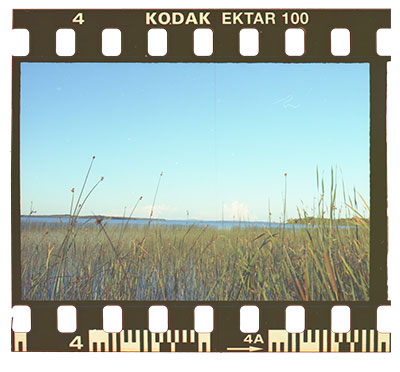
How To Safely Use Alcohol To Clean Negative Film Before Scanning
These tips are for you if your negative scans are coming out with a lot of finger prints, oil stains, dust, yellow or green dots, and minute debris.

How To Fix Slide Scan Colour, Dust, Exposure Using GIMP
GIMP does exactly what Photoshop can... and it's FREE. Learn how to use GIMP to fix your slide scans.

Best Resolution For Scanning Photos If You Want HD Quality
Not sure what's the best dpi to use when scanning photos? Learn more about photo scan resolution.

Best Resolution When Scanning 127, 126, 110, Medium Large Format Slides and Negatives
What if you're slides and negatives are NOT 35mm? Learn what's the best resolution to scan different size transparencies.

Are Your Negatives Getting Cut Into Parts?
Here's how to make sure your scanner isn't cropping your negative film scans into parts.

If Your Slides Scans Are Turning Out Red, Here's How To Fix This
You'll learn how to use your scanner software, GIMP, and Photoshop to fix red slide scans (with video).

Why Are Your Negative Scans Coming Out Grainy?! And Tips On How To Fix This
You'll learn how to fix grainy negative scans using Photoshop, scan software, GIMP (with video).
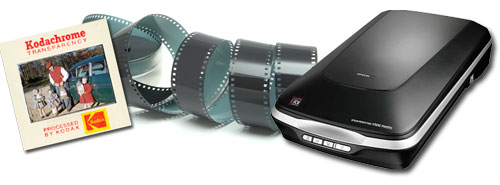
How To Use Your Flatbed Scanner On Slides And Negatives
You don't need an expensive film scanner... your flat bed can also scan slides and negatives. Here's how to setup your flat bed scanner for slides and negatives.
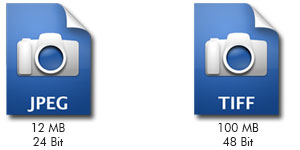
What's Better When Saving Your Scans, TIFF or JPEG?
Learn the difference between TIFF scans vs. JPEG scans. And decide which format is best for you.

An Easy Way To Understand Slide Scan Resolution When Scanning Different Size Formats (75mm, 120, 10mm)
What if you're not scanning just 35mm slides? Learn what dpi do you use when you have different sized slides.

Your Scanner Is Compressing Your JPEG Scans To A Low Quality
Learn how to setup your scanner's JPEG compression levels so you're not scanning low quality digital images.

How To Get A Natural Slide, Negative, Photo Scan Your Scan Software Doesn't Ruin Your Digital Images
Your scan software will make irreversible changes to your scans. Here's how to get a natural scan so you can fix your images in Photoshop, GIMP, etc.

Best Scan Resolution For 1080p and 4k HDTV's
Learn how resolution works so you don't scan your images with the wrong DPI for viewing on your HDTV's.

Stuck Scanning? Need Help Right Now With Your Scan Project?
I invite you to email me and ask me anything. Your questions help me add content to my site. And you'll get an answer to your scanning challenge so you can finish your project faster!

Free Ebooks: "How To Scan Your Own Slides, Negatives, Photos"
In my free ebook you'll learn tips on how to speed up scanning, and improve the quality of your images. And you'll learn tips that won't be in your scanner manual. Grab your copy, click the link above to start...

Watch These Free Videos On How To Scan
Watch these videos to help you with your scan project.